asExplorer
The file explorer Windows users miss on the Mac. The familiar Explorer layout with tabs, pinned folders, a preview pane, the Windows 11 right-click menu and search inside files, while respecting macOS: Finder shortcuts, Trash, tags and Quick Look.
Free · Version 1.0.0 · macOS 12+, Windows 10/11, Linux x64 · What's new
Everything you know from Explorer
Built for people who switched to the Mac but still think in Explorer — and it runs on Windows and Linux too.
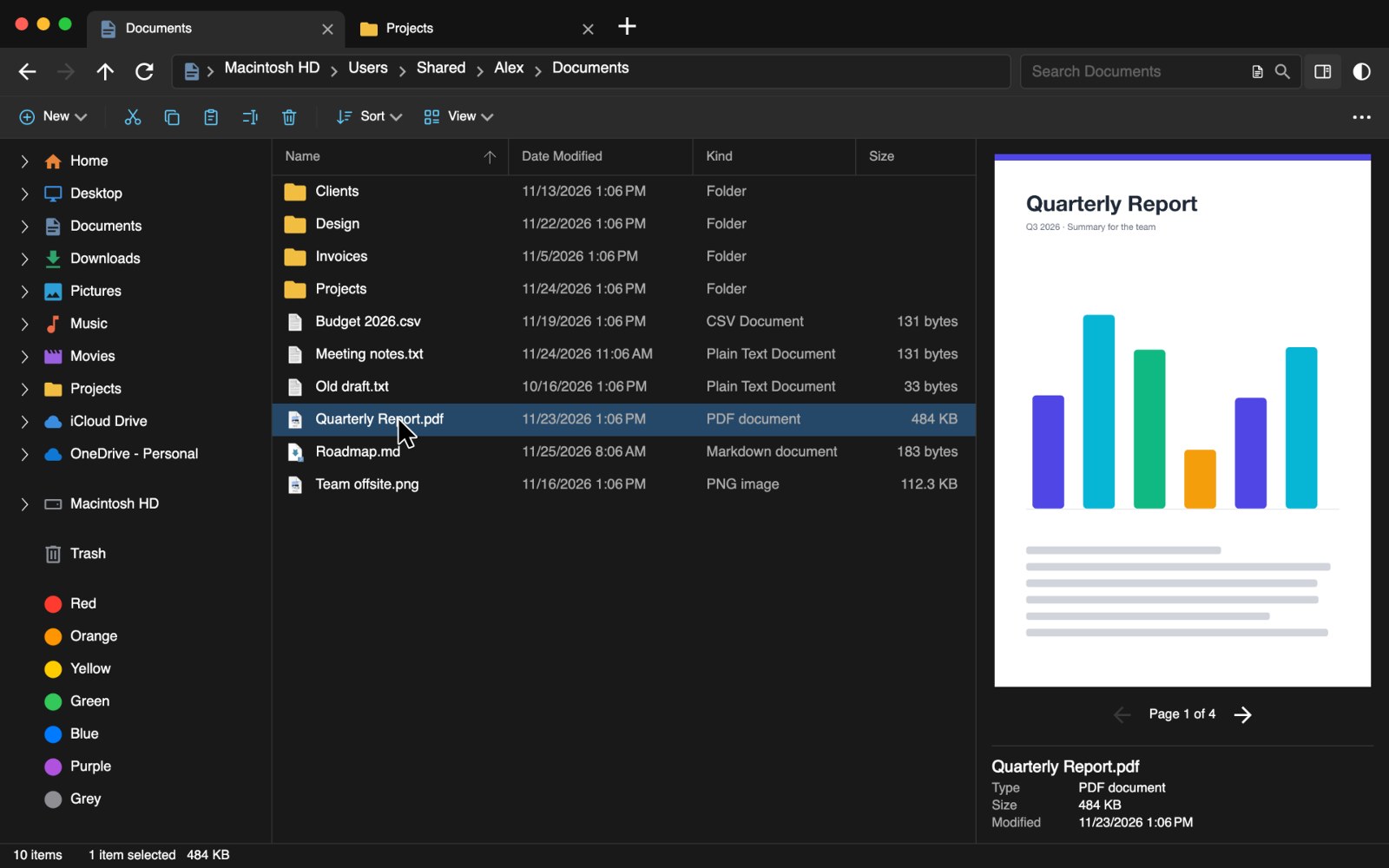
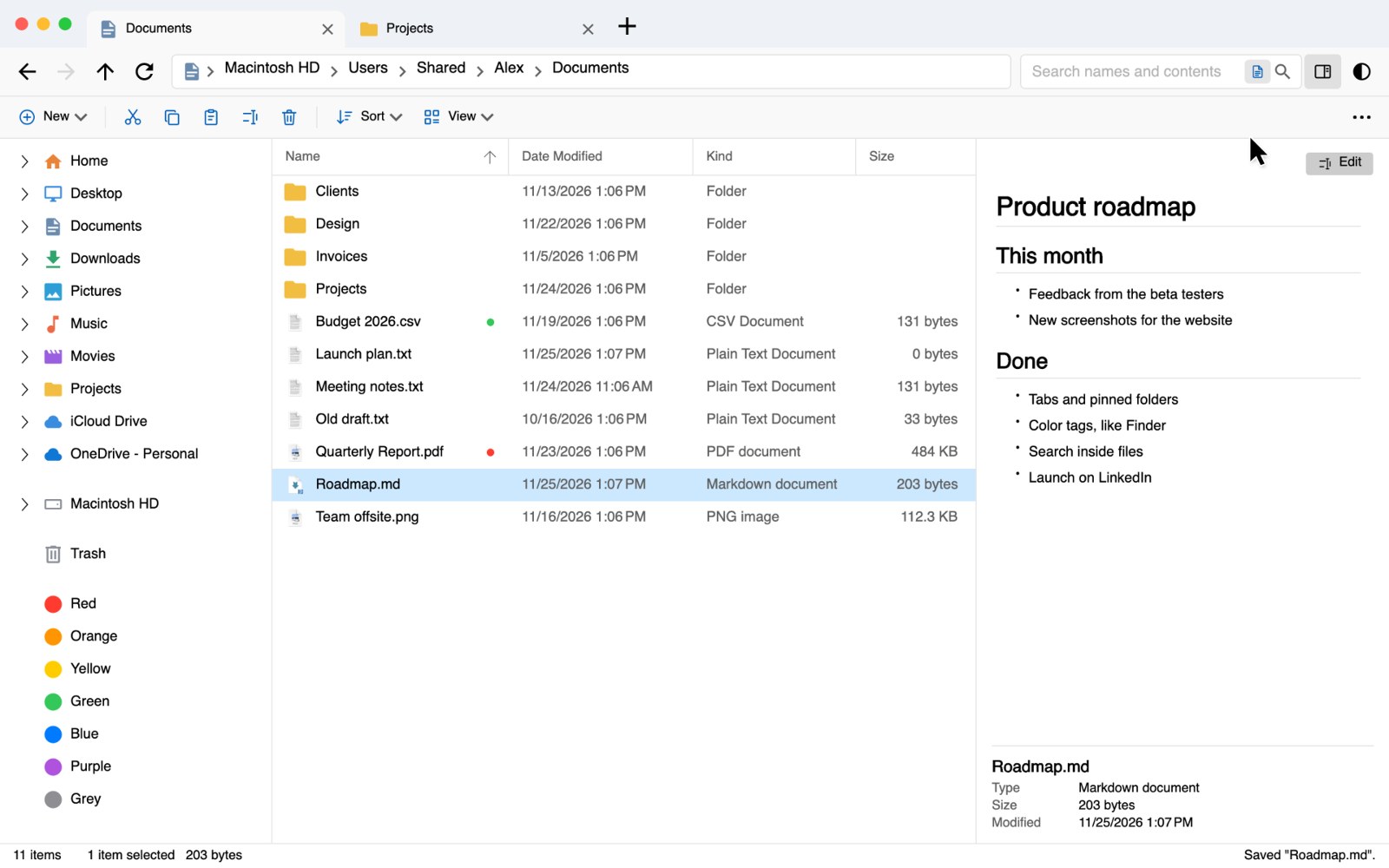
The Explorer layout
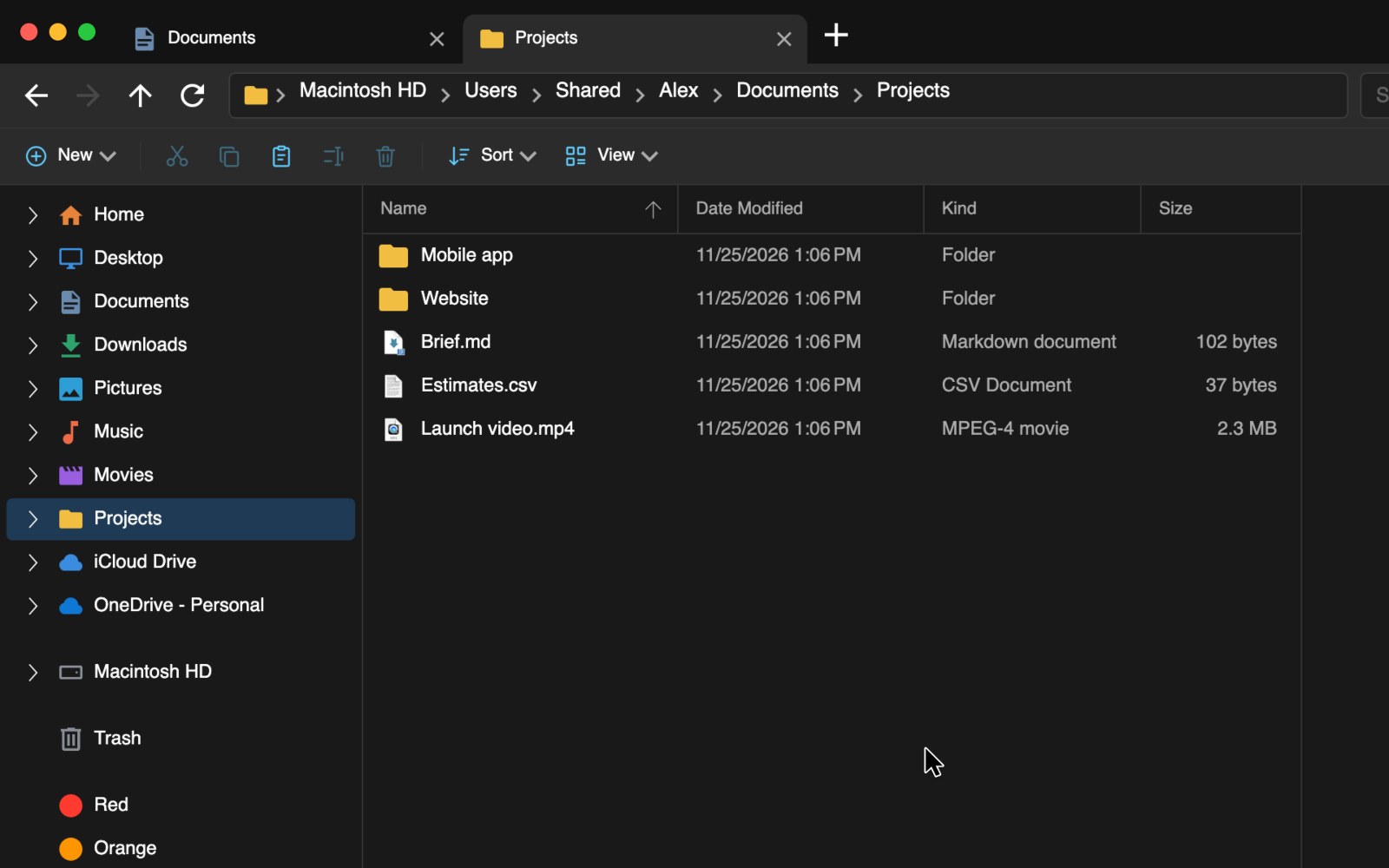
Navigation pane with your folders, cloud folders and drives, a breadcrumb address bar you can type into, the Windows 11 command bar, details and icon views with thumbnails, and sorting remembered per folder.
Preview pane
See a file without opening it: PDF, Word, Excel, PowerPoint, images, Markdown, CSV, JSON, ZIP, text and code, audio and video. On the Mac, anything Quick Look can show.
Tabs
⌘T or Ctrl+T, ⌘ / Ctrl + double-click or a middle-click on a folder. Drag tabs to reorder them or into another window, drop files on a tab to put them in its folder, and find your windows and tabs again the next time you start asExplorer.
Pinned folders
Keep the folders you use most in the navigation pane: Add to Sidebar (⌃⌘T) on the Mac, Pin to Quick access (Ctrl+Shift+Q) on Windows and Linux, or drop a folder there. Drag them to change the order. A pinned folder that's been moved or whose disk is gone is grayed out until it's back.
Color tags
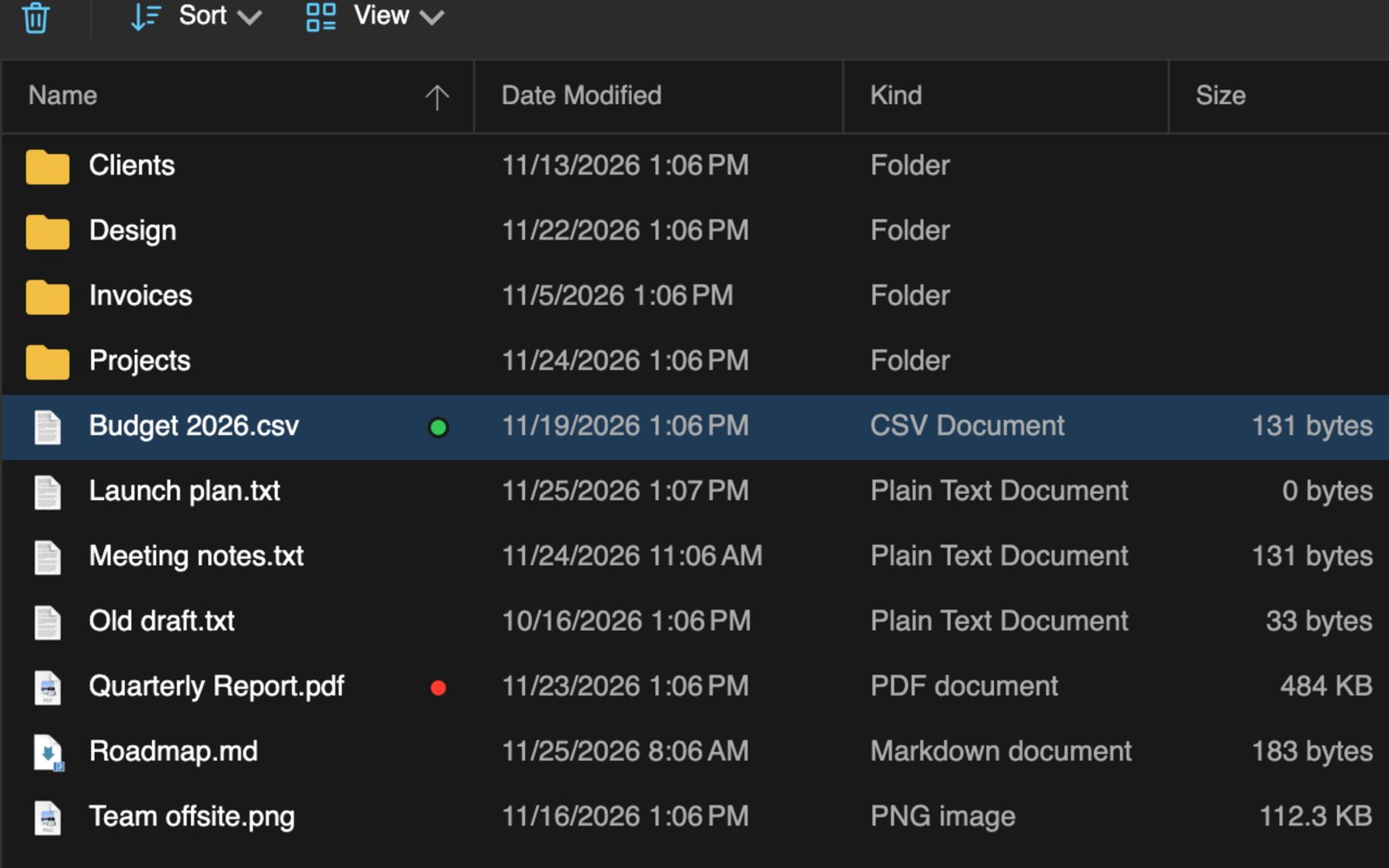
Finder's seven colors on the Mac, Windows and Linux: from the right-click menu or ⌃⌘1–7 / Ctrl+Alt+1–7, shown after the names, and every tagged file one click away in the navigation pane. On the Mac they are Finder's own tags.
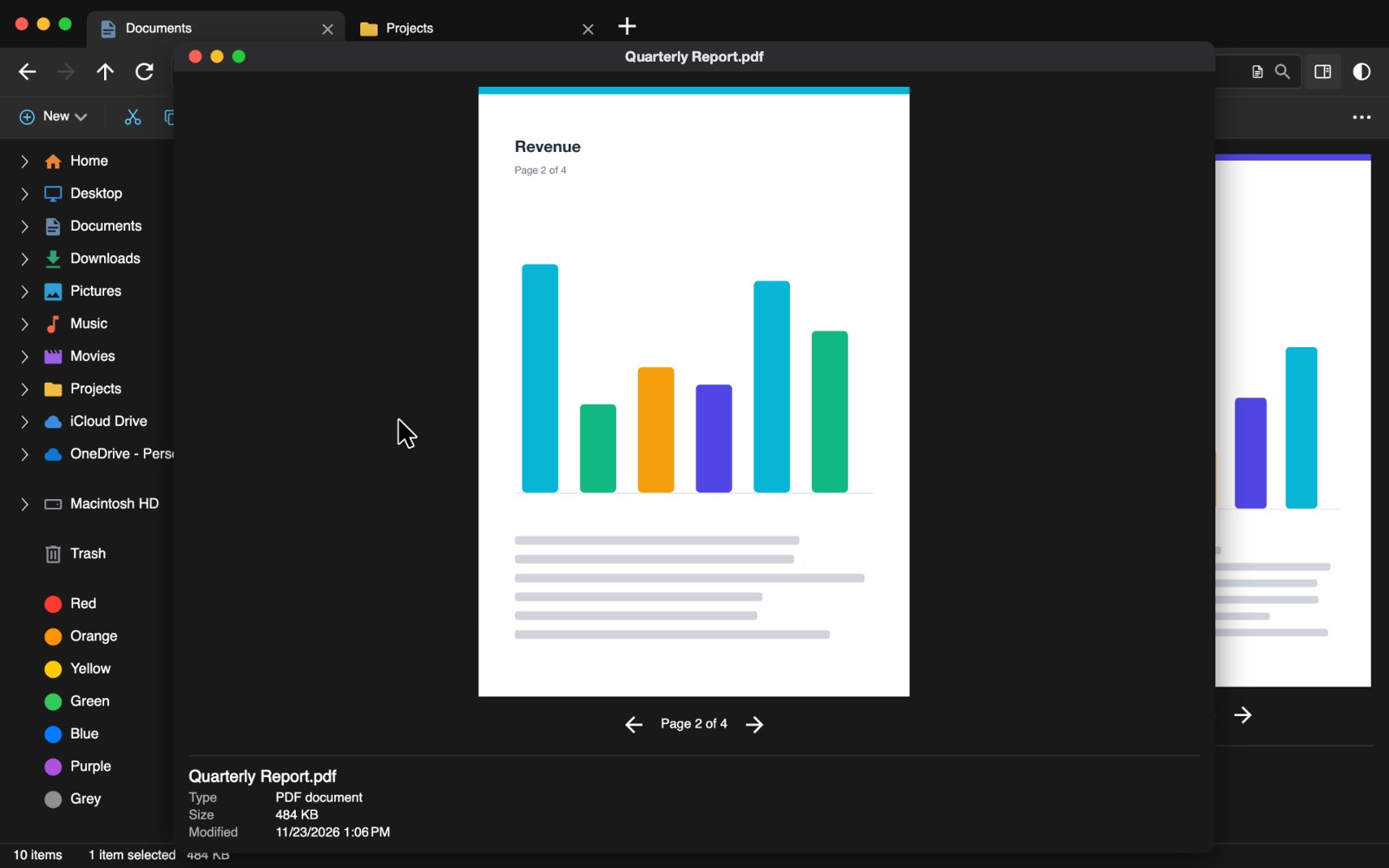
Quick Look with Space
Press Space for a large preview. Arrow keys turn pages of PDFs and documents, or move to the next file.
Windows 11 right-click menu
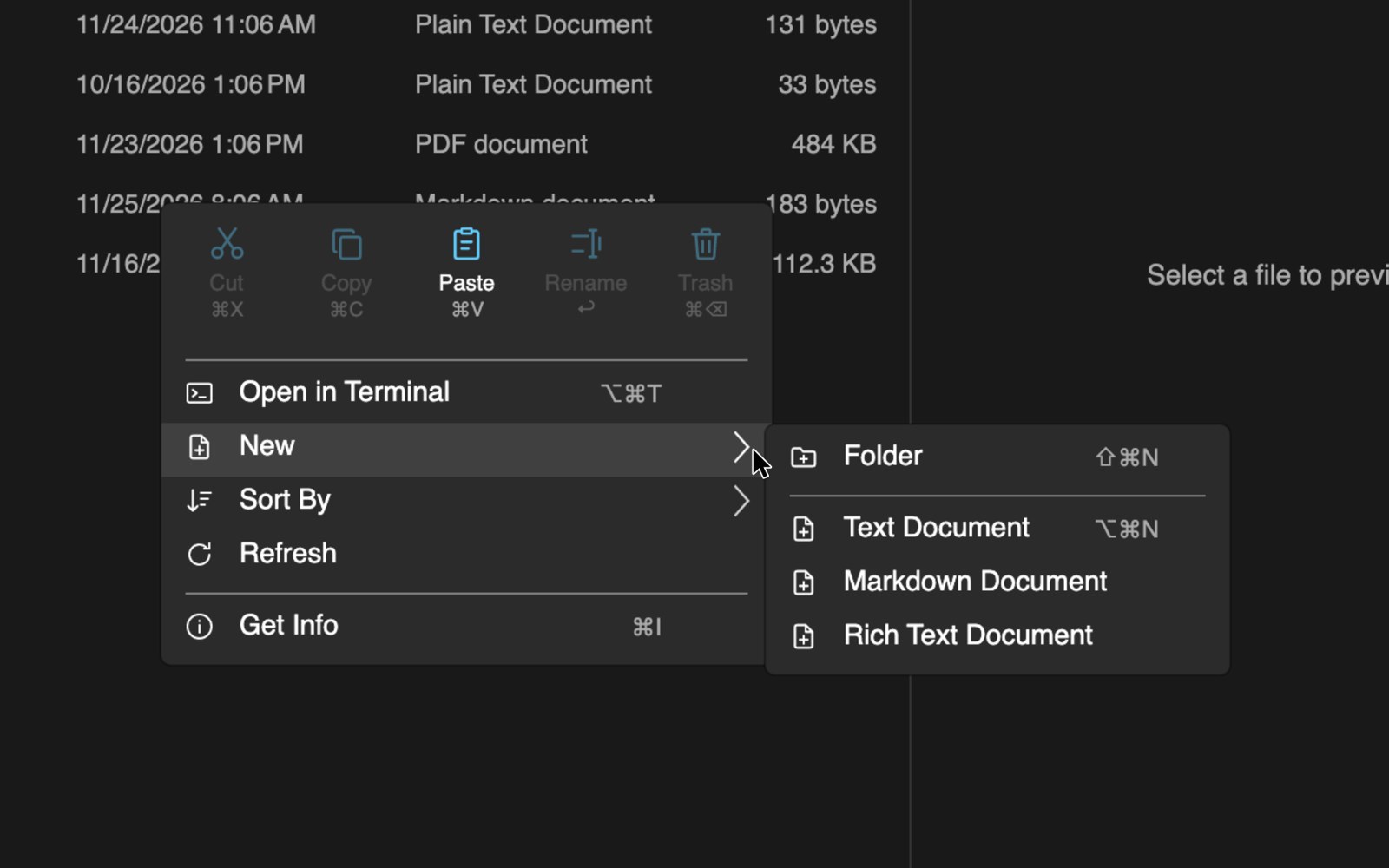
Cut, Copy, Paste, Rename and Delete as tiles, then Open with (apps with their icons, just once or always), New folder or document, Duplicate (⌘D on the Mac), Copy as path (⌥⌘C / Ctrl+Shift+C), Compress, Open in Terminal and Get Info. Double-click a ZIP to extract it.
Search into subfolders
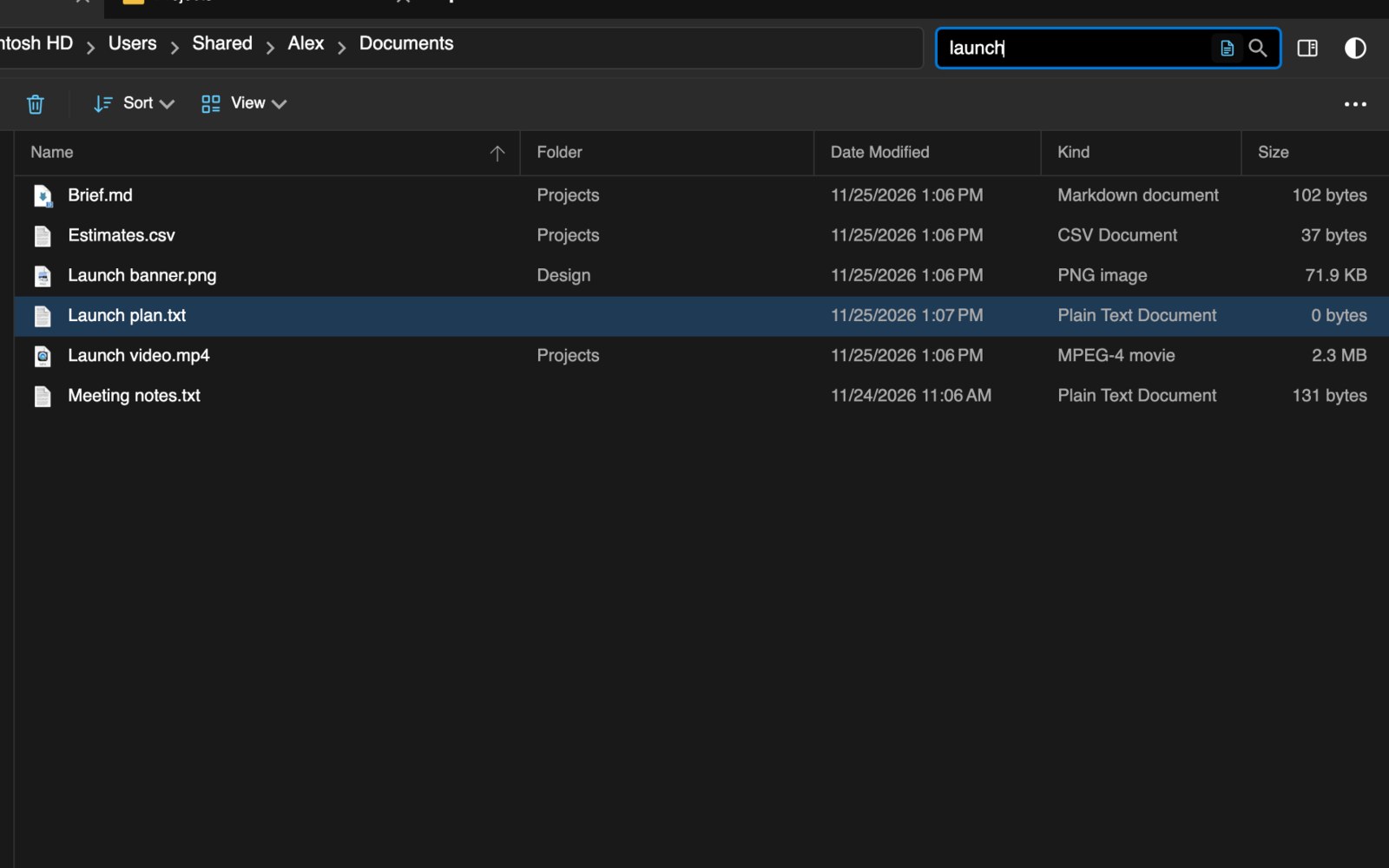
Matches in the open folder at once, then from its subfolders as they are found. Case and accents don't matter, and * and ? work as in Explorer. Show in Enclosing Folder (⌘R) or Open file location (Ctrl+Shift+R) takes you to a result's folder.
Search inside files
Click the page icon in the search box, or press ⌥⌘F / Ctrl+Shift+F, to also find files whose text contains the words you typed. Spotlight (Mac) and Windows Search also look inside PDFs and Office documents; on Linux, text files are searched. Files that are only in the cloud are never downloaded for it.
Default file manager
Let folders open in asExplorer. On the Mac it's in the app menu (with the app in Applications), and other apps' Show in Finder comes here too. On Windows and Linux it's in See more (…). It asks first, and Restore switches back.
Coming from Windows?
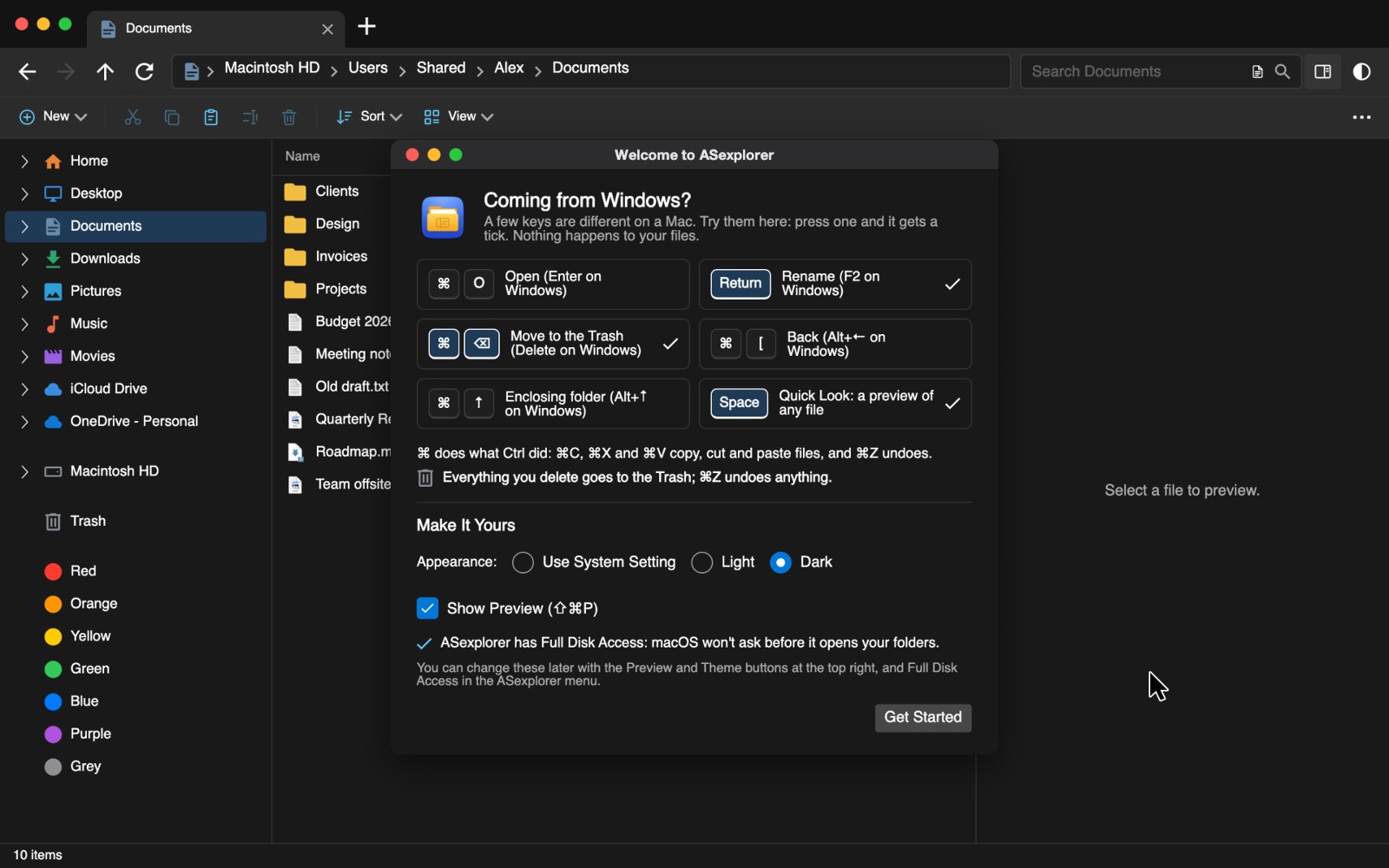
At the first start a short welcome lets you try the keys that matter (⌘⌫ to the Trash, Return to rename, Space for Quick Look) and choose the theme and the preview pane in one place.
Copies that never overwrite
When a name is taken you choose: Replace, Skip or Keep Both, as in Finder or Explorer. Replaced files go to the Trash first, and Undo brings them back. On the Mac, Put Back returns trashed items to where they were.
Network shares
Connect to Server (⌘K) on the Mac, with your recent servers, and Map network drive on Windows. Type smb://server/share or \\server\share in the address bar to go straight there.
Cloud folders and Trash
iCloud Drive, OneDrive, Google Drive and Dropbox in the navigation pane, with their connection state. The Trash or Recycle Bin is there too: put items back, delete them for good, or empty it.
Rename several items at once
On the Mac, select a few items and press Return, or right-click › Rename…, for a Rename Items window that replaces text, adds text or numbers the names. On Windows and Linux, press F2 and type one name to number them all. One Undo (⌘Z / Ctrl+Z) puts every name back.
Undo, Redo and Cancel
Undo (⌘Z / Ctrl+Z) takes back a copy, move, rename, new item, zip or delete, and Redo (⇧⌘Z / Ctrl+Y) does it again. Long copies and moves show a progress window with the time left, and Cancel stops them without leaving half a file behind.
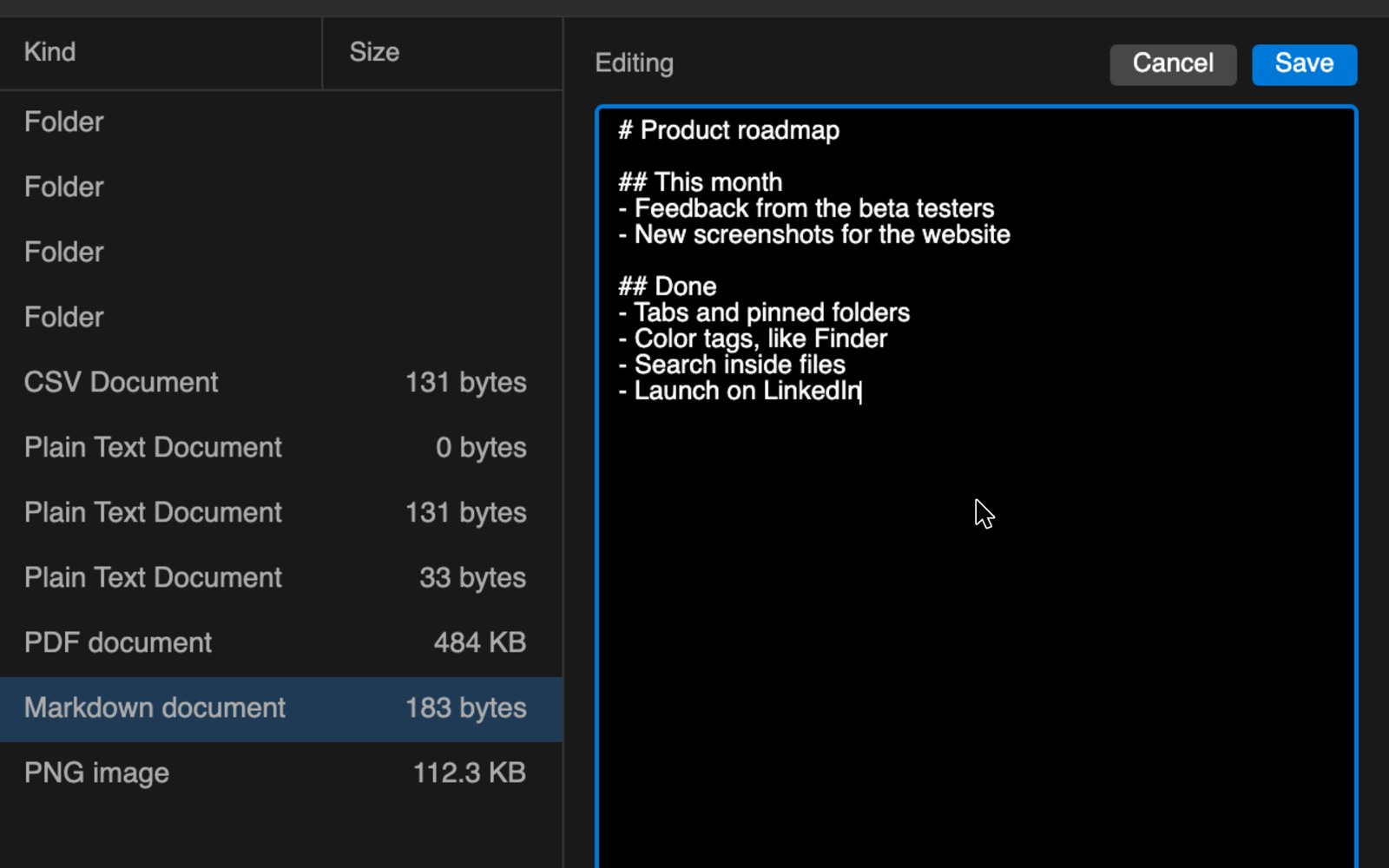
Edit notes in place
Click into a text or Markdown file in the preview to edit it right there. Saves when you move on.
Your platform's keys and mouse
⌘C ⌘V ⌘⌫ ⌘I on the Mac, Ctrl+C Ctrl+V Delete Alt+Enter on Windows. Back and forward mouse buttons, middle-click for a tab behind the current one, a selection rectangle, and type to select.
Works with your system
Your system's file icons and type names, light and dark themes that follow it (vibrancy on macOS, Mica on Windows 11), selections in your accent colour (Mac, Windows), copy and paste or drag and drop with Finder or Explorer, and folders that refresh by themselves. On the Mac, apps open as apps and disks eject.
See it in action
Screenshots from the Mac version.
Download asExplorer
Free. Version 1.0.0 (release notes). Everything is included — no .NET or other runtime to install.
macOS
Your systemmacOS 12 Monterey or later
Apple Silicon (M chips) 56 MB Intel Mac 61 MBHow to install
- Open the DMG and drag asExplorer onto Applications.
- Open asExplorer from Applications. It is signed and notarized by Apple, so it opens without any extra steps.
- When you open Desktop, Documents or Downloads, macOS asks for access: click Allow.
Windows
Your systemWindows 10 or 11, 64-bit
Download for Windows 38 MB Portable ZIP 52 MBHow to install
- Run the setup. It installs for you only, so no administrator rights are needed, and adds asExplorer to the Start menu. Uninstall it in Settings › Apps.
- If SmartScreen warns about an unknown app, click More info › Run anyway.
- Portable ZIP: right-click › Extract All, then start
ASexplorer.exein the extracted folder.
Linux
Your system64-bit (x64) desktop · basic support
Download AppImage 45 MB tar.gz 50 MBHow to install
- Make it executable:
chmod +x ASexplorer-Linux-x86_64.AppImage(or Properties › Executable as Program), then start it. - For a menu entry, open it with Gear Lever or AppImageLauncher.
- If it does not start, install FUSE (
sudo apt install fuse3) or run it with--appimage-extract-and-run. - tar.gz:
tar xzf ASexplorer-Linux-x64.tar.gz, then./ASexplorer/ASexplorer. - The Open with list is not available on Linux yet.